Image to model
Build depth with a 2D to 3D image converter
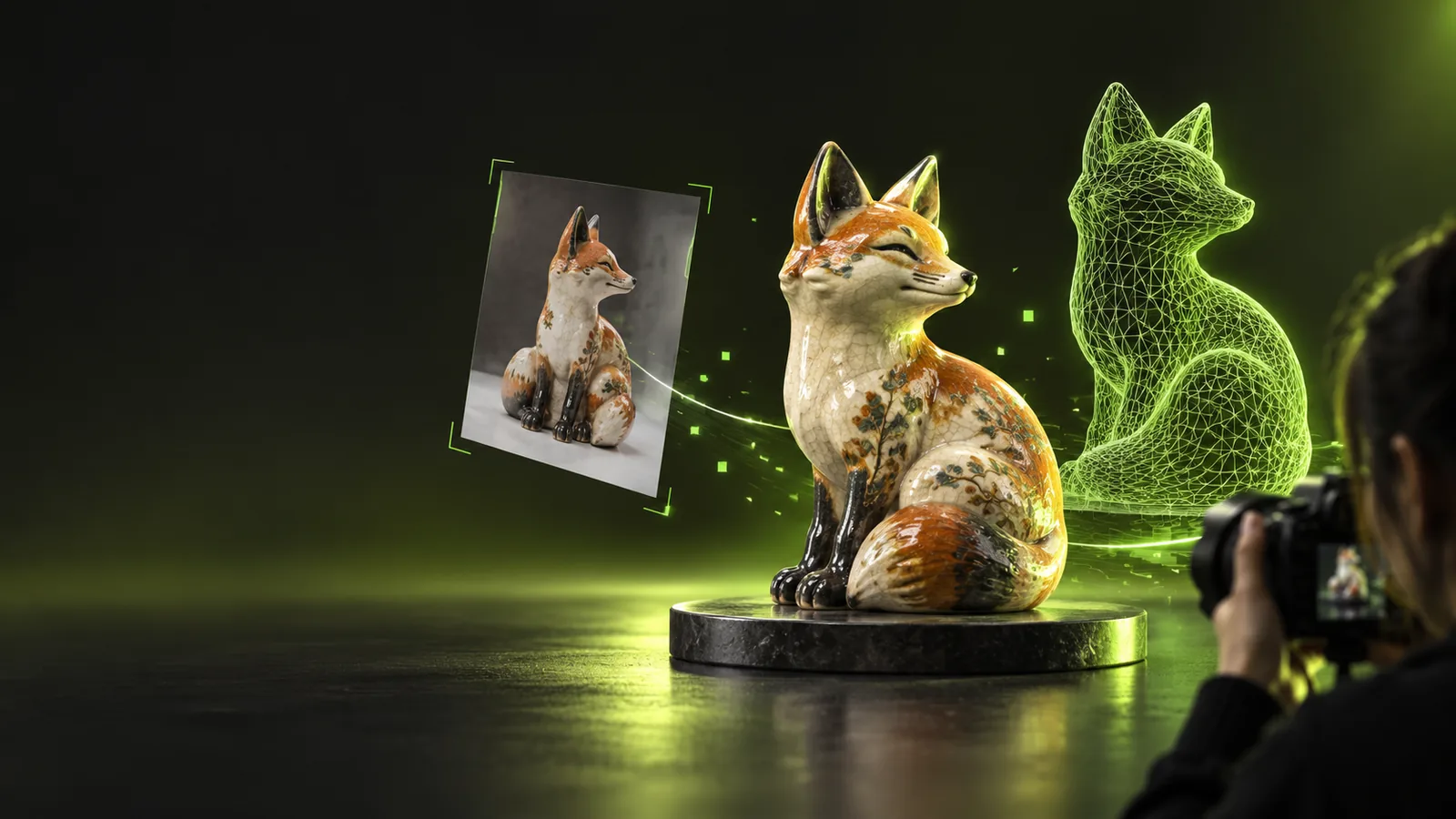
A 2d to 3d image converter can turn one flat reference into a useful 3D starting point. Prepare a clear source, describe the result you need, and review the generated geometry before using it in a project.
Choose a route
Who needs a 2D to 3D image converter?
This workflow suits creators who need a dimensional starting point from a single reference rather than a finished scan or production-ready asset.
- image to 3d model glb free Use this route when GLB delivery is the main requirement for your 3D workflow.
- image to 3d obj Choose the OBJ-focused path when your modeling software depends on a widely supported mesh format.
- photo to 3d online Explore an online image workflow when you want to move from reference to model without local setup.
Tool workflow
Use the 2D to 3D image converter in three steps
Keep the input simple and the request specific so the generated model has a clear visual target.
-
1
Choose a strong source
Import a sharp image with the subject separated from its background. A centered object with visible edges gives the system more useful visual evidence.
-
2
Describe the intended form
State what the subject is, which details matter, and whether the result should be smooth, stylized, low-poly, or ready for further editing.
-
3
Inspect the result
Check silhouette, hidden surfaces, proportions, and material detail. Treat the first output as a starting point and refine the request when needed.
Import guide
Import steps and source checks
The image itself strongly affects how much useful depth can be inferred. Compare these two starting conditions before you upload.
| Recommended source | Risky source | |
|---|---|---|
| Subject framing | One main subject, centered and fully visible | Several overlapping subjects or a cropped object |
| Background | Plain or visually separated from the subject | Busy background with similar colors |
| Lighting | Even light with visible edges and moderate contrast | Hard glare, deep shadows, or blown highlights |
| Camera angle | Clear front, side, or three-quarter view | Extreme perspective or a heavily tilted view |
| Surface detail | Texture and key contours are easy to see | Blur, compression, or repeating patterns hide form |
| Object boundaries | Silhouette is distinct around most of the subject | Hair, wires, glass, or thin parts merge into the background |
| Expected result | A useful visual base for editing or iteration | A guaranteed replica of hidden or unseen geometry |
Import cautions
Common import errors
A converter can only infer depth from visible evidence. These problems do not always stop an import, but they can make the output harder to use.
The subject is cropped
If part of the object falls outside the frame, the missing area has no direct visual reference and may be reconstructed inaccurately.
What to do instead
Use a wider image with the complete subject visible and leave a little space around its silhouette.
The background overwhelms the object
Busy scenes, similar colors, and overlapping objects make it harder to distinguish the subject from its surroundings.
What to do instead
Select a cleaner source or simplify the background before importing.
Hidden sides are unknown
A single image cannot show every surface, so the rear, underside, and concealed details may be estimated rather than observed.
What to do instead
Use a prompt that accepts approximation or provide additional references when the workflow supports them.
Thin details disappear
Small handles, cables, transparent parts, and sharp protrusions can be softened, merged, or omitted in the generated form.
What to do instead
Use a larger, sharper source and describe those details explicitly in the request.
Phototo3d helps turn a well-prepared reference into a practical 3D starting point. Bring a focused image, describe the intended form, and use the first result to guide your next refinement.
Start with a clearer image, then shape the result
- Use one clearly framed subject
- Describe the details that matter
- Review hidden surfaces before delivery
Variant FAQ
2D to 3D converter FAQ
It is a tool that analyzes a flat image and creates a 3D representation or modeling starting point from the visible subject. The result is inferred from the image, so unseen surfaces and fine details may require review or refinement.
Many ordinary object references can provide a useful starting point, but image quality and subject visibility matter. Cropped subjects, busy backgrounds, reflections, and hidden surfaces can reduce the accuracy of the result.
Use a sharp image with one centered subject, clear boundaries, moderate lighting, and enough space around the object. A plain or separated background usually makes the subject easier to interpret.
The back may be estimated because a single view does not reveal every surface. If the rear or underside is important, treat the result as a base for checking and editing rather than a guaranteed scan.
You can use the generated result as a starting point for visual exploration, editing, or iteration. Inspect the mesh, proportions, missing details, and materials before relying on it for a specific production or fabrication purpose.