3D printing workflow
Create a 3d print from photo online
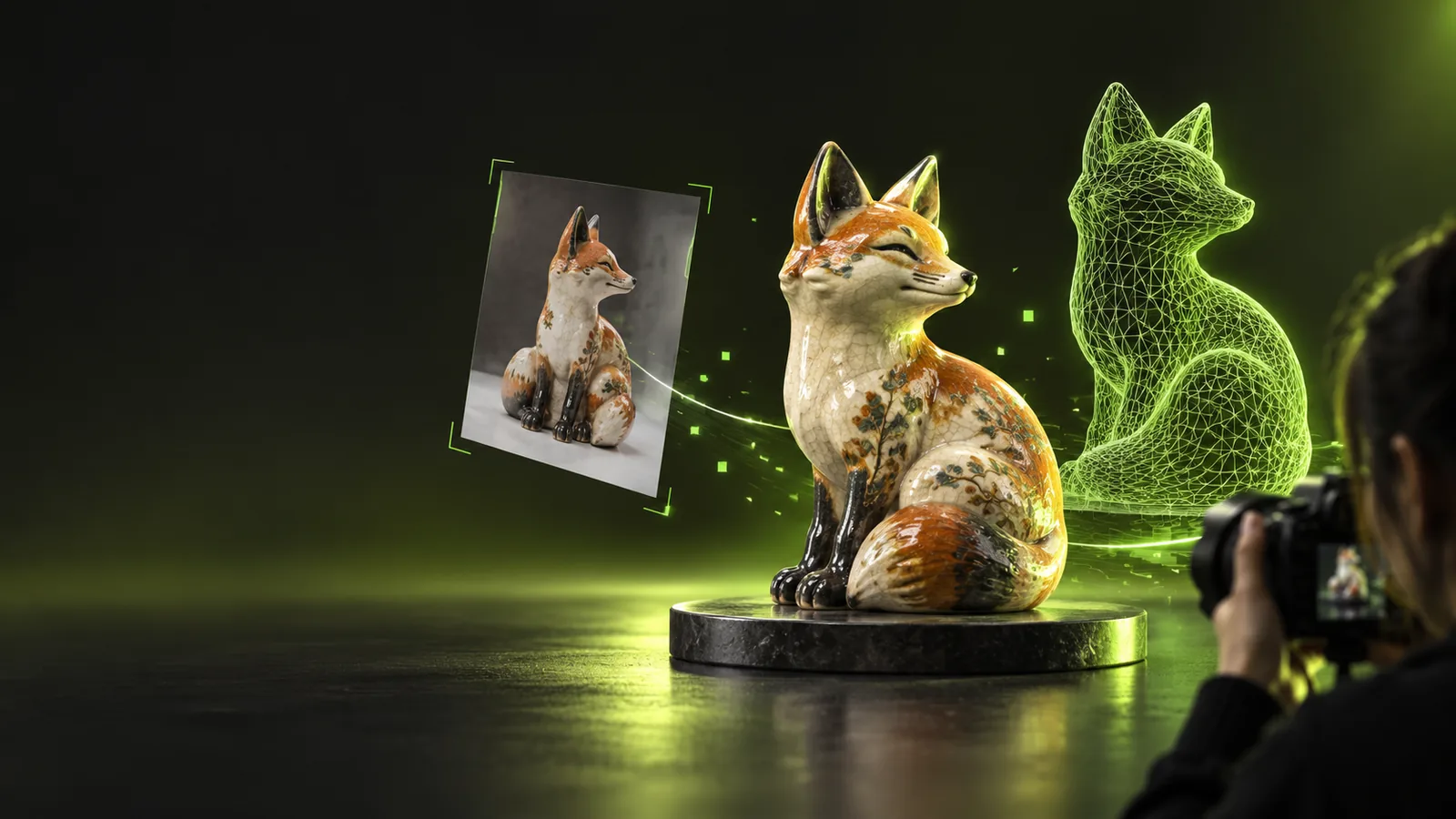
A 3d print from photo online workflow starts with the right reference image and ends with a model you can inspect before committing to fabrication. Phototo3d helps you move from a visual idea to a more practical photo to 3d starting point.
Three workflows
Three practical workflows for photo to 3d printing
The best workflow depends on whether you need a quick concept, a recognizable keepsake, or a model that will receive careful print preparation.
-
1
Start with a useful reference
Choose one subject with clear edges, even lighting, and as little background clutter as possible. A single image gives the photo to 3d process visual evidence, not complete measurements, so the reference should make the important silhouette easy to read.
-
2
Generate and inspect the model
Send the image or describe the object, then examine the resulting geometry from several angles. Look for hidden surfaces, thin features, floating parts, and areas where the system had to infer depth rather than observe it.
-
3
Prepare for the intended print
Decide whether the output is a display piece, a small figurine, a prop, or a functional part. Scale the model, check wall thickness and overhangs in your slicer, and make repairs before treating the photo to 3d result as production-ready.
Example output
From reference image to a printable concept
A photo to 3d result can preserve the recognizable form of an object while still requiring inspection and print preparation. Use the comparison as a visual checkpoint, not as a guarantee of manufacturing accuracy.
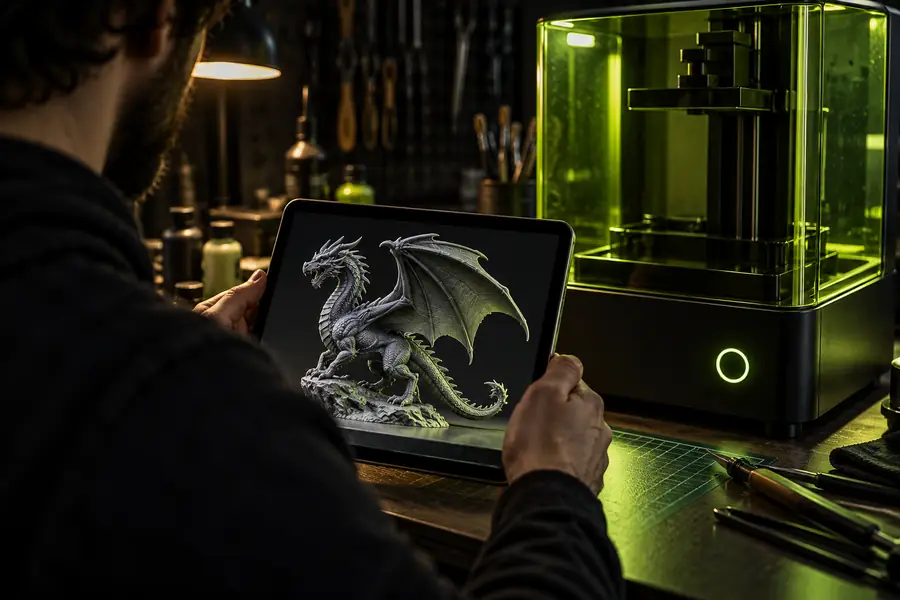
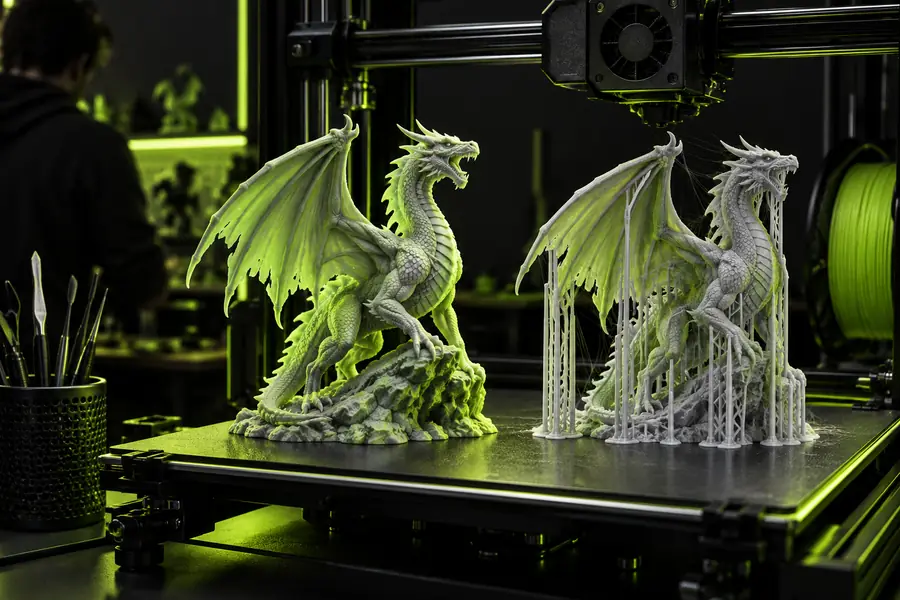
The visible shape may be convincing while hidden geometry still needs review. Check scale, base stability, thin details, and surface continuity in a slicer before printing.
Reference photo3D model conceptPrint preparation
What to check before sending a model to a printer
A generated model and a printable model are related, but they are not the same deliverable. These checks help separate visual success from practical 3D printing readiness.
| Reference photo | Generated 3D model | |
|---|---|---|
| Visible silhouette | Shows the subject from one camera angle. | Reconstructs a three-dimensional silhouette from available visual clues. |
| Hidden surfaces | Usually provides no evidence for the rear, underside, or interior. | May infer unseen areas, so those surfaces need manual inspection. |
| Scale | Provides visual proportions but not reliable real-world dimensions. | Can be scaled for a project, but the intended size must be chosen separately. |
| Thin features | Can show that a detail exists without proving it can survive fabrication. | May contain fragile or incomplete details that need thickening or simplification. |
| Watertight geometry | Has no mesh or manifold requirement. | Needs a closed, coherent mesh for dependable slicing and printing. |
| Surface finish | Captures lighting, texture, and color in the source image. | Represents shape separately from the final printed material and finish. |
| Functional accuracy | Does not establish tolerances, fit, or load-bearing dimensions. | Requires CAD edits or measured references when the object must function. |
| Print orientation | Does not indicate supports or the best build direction. | Still needs orientation, support, infill, and layer-height decisions in the slicer. |
Honest limitations
Where a photo to 3d workflow needs extra care
Online reconstruction is useful for ideas and many visual objects, but a single image cannot provide every measurement a printer or engineer may need.
It cannot recover unseen detail perfectly
The back, underside, and internal structure may be inferred from context rather than captured from evidence.
What to do instead
Use multiple reference views when possible, then inspect and repair the hidden geometry before slicing.
It cannot guarantee a ready-to-print mesh
A recognizable model may still contain holes, self-intersections, floating parts, or walls that are too thin for the chosen process.
What to do instead
Run a mesh repair and manifold check, then preview layers in your slicer.
It cannot establish engineering tolerances
A photo does not prove exact dimensions, fit, strength, heat resistance, or load-bearing performance.
What to do instead
Use measured references or CAD for functional parts, and treat photo to 3d output as a starting shape.
It cannot choose the right material for you
The model does not determine whether resin, PLA, PETG, nylon, or another material suits the object and its use.
What to do instead
Match material, nozzle or resin settings, support strategy, and finishing steps to the intended result.
Start with the reference
Phototo3d gives you a focused place to begin when you have an object, character, ornament, or keepsake in mind but no finished mesh. Bring a clear reference, describe the intended result, and use the generated model as a reviewable starting point for your 3D printing workflow. Before fabrication, confirm the dimensions, repair the mesh, and preview the layers in the slicer.
Turn a visual idea into a printable direction
- Begin with a clear subject and simple background
- Inspect hidden surfaces and delicate details
- Prepare the mesh for your printer and material
Scenario FAQ
Questions about printing from a photo
These answers focus on the practical questions people ask when they want to turn an image into a physical object.
Yes, an online photo to 3d workflow can create a three-dimensional model concept from a reference image. The result should be inspected and prepared in mesh-repair and slicing software before you send it to a printer.
Use a sharp image with the subject clearly separated from the background, even lighting, and visible edges. A simple object with a readable silhouette is easier to interpret than a crowded scene or a subject hidden by shadows.
It may be suitable for decorative objects, concept models, figurines, and other visually driven projects, but one photo cannot confirm hidden geometry or exact dimensions. For a functional part, use measurements, multiple views, or CAD edits before manufacturing.
Usually, you should inspect the mesh before printing, even when the shape looks correct. Check for holes, disconnected pieces, thin walls, non-manifold edges, unstable bases, and unsupported overhangs, then preview the layers in your slicer.
The reference can communicate color and surface appearance, but the final printed result depends on the model, material, printer, and finishing process. Treat visual texture as guidance unless your chosen production method supports the required surface detail.