OBJ mesh workflow
Turn an Image to 3D OBJ
Image to 3D OBJ conversion gives you a mesh starting point from a visual reference. Begin with a clear subject, then inspect the result before using it in your next 3D workflow.
- image to 3d model glb free Compare the GLB route when you need a compact scene file with mesh, materials, and scene data together.
- 2d to 3d image converter See the broader conversion workflow for turning a flat image into a usable three-dimensional starting point.
- photo to 3d online Explore an online photo workflow when your source is a photograph rather than a designed reference image.
A/B Structural Differences in an OBJ Workflow
The source is a flat visual reference; the result is an editable geometric approximation. These three stages show what changes between them.
-
1
Prepare the reference
Use one main subject, strong contrast, and visible contours so the system can separate the object from its background.
-
2
Generate the mesh
The conversion estimates depth and surfaces from the image, producing geometry that can be opened and inspected as an OBJ asset.
-
3
Compare the result
Check the silhouette, major planes, underside, and hidden areas against the original before you edit, export, or place the model in a scene.
What Conversion Loses
A single image can suggest shape, but it does not show every surface. Treat the output as an informed reconstruction, not a measured scan.
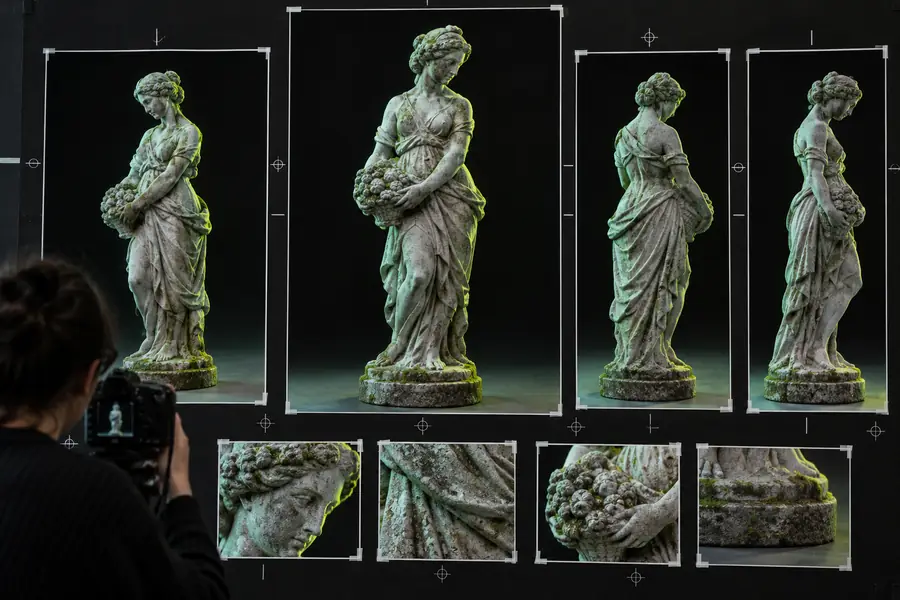
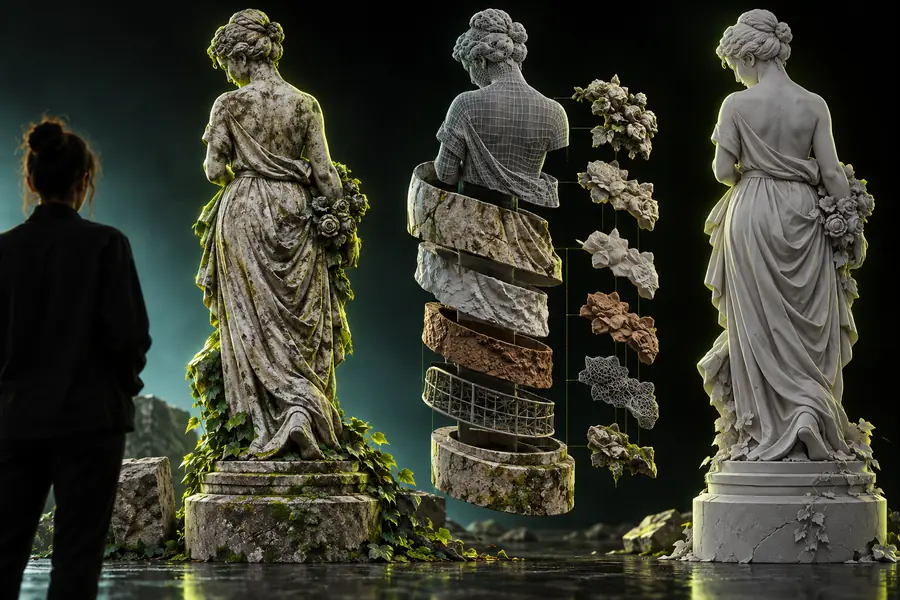
Hidden geometry, exact scale, and fine surface detail may need manual review.
Source imageOBJ-style 3D resultUse the Tool With the Right Expectations
An OBJ workflow is useful when geometry is the priority and you expect to inspect or edit the mesh. The table separates the source image from the resulting asset.
| Source image | OBJ model | |
|---|---|---|
| Representation | Flat pixels arranged in two dimensions | Vertices, edges, and polygon faces |
| Depth | Suggested by shading, overlap, and perspective | Estimated as three-dimensional surface structure |
| Hidden areas | Usually unavailable from one view | Filled or inferred by the reconstruction |
| Editing | Crop, retouch, and adjust image pixels | Move, scale, inspect, or reshape geometry |
| Scale | Depends on camera and image context | Needs checking against a known reference |
| Materials | Color and texture information in the image | May require separate material or texture review |
| Best first check | Subject clarity and visible contour | Silhouette, normals, gaps, and unwanted geometry |
How to Verify After Conversion
Open the OBJ in a viewer or 3D application and rotate it through several angles. Compare the front silhouette with the source, inspect the back and underside for guessed geometry, and look for holes, spikes, flipped faces, or disconnected pieces. If the model will be used with other assets, confirm its scale and orientation before continuing.
- Use a clean, well-lit reference
- Inspect hidden surfaces from multiple angles
- Check scale before placing the model
Image to OBJ FAQ
It is a process that estimates three-dimensional geometry from a two-dimensional image and produces an OBJ mesh. The result is a starting point for inspection and editing, not a guaranteed measurement of every hidden surface.
One image can provide a useful approximation of the visible subject and inferred depth. Areas that are hidden, reflective, symmetrical, or visually ambiguous may need correction after generation.
Use a sharp image with one clear subject, visible boundaries, and limited background clutter. Even lighting and a distinct silhouette make it easier to estimate the object’s major surfaces.
Rotate the model and compare its silhouette, proportions, and major planes with the source image. Also inspect the underside, back, normals, disconnected geometry, and scale before using the asset in another workflow.