Phototo3d

Practical tutorial

Learn How to Use Photo to 3D Online

This guide explains how to use photo to 3d online from image preparation through model review. Follow the workflow to create a stronger starting point for a 3D asset without guessing which steps matter.

Review the result before export
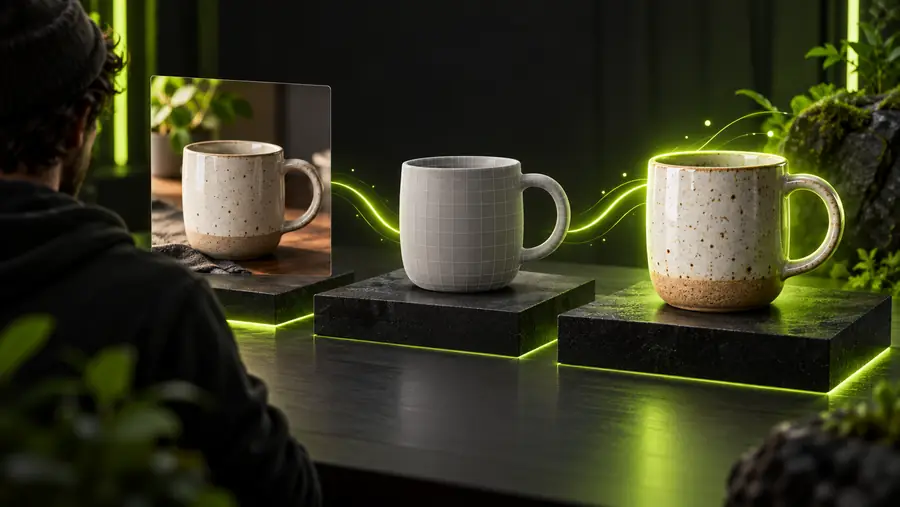
A 3D object created from a source image

Core workflow

Numbered steps

The most reliable photo to 3d process is simple: prepare the image, submit it with a specific goal, then inspect the generated geometry before using it elsewhere.

  1. 1

    Prepare one clear subject

    Use a well-lit image with the main object separated from distracting backgrounds. A centered subject with visible edges gives the conversion process more useful visual information than a crowded scene.

  2. 2

    Describe the intended result

    Upload or provide the source image, then state what should be preserved: the object type, important openings or handles, approximate proportions, and whether the model is for viewing, editing, or a later print workflow.

  3. 3

    Inspect and refine the output

    Review the silhouette, top and underside, thin parts, and hidden surfaces. If the result misses a feature, improve the source image or clarify the request before treating the model as final.

  4. 4

    Move the model into your workflow

    Once the geometry is acceptable, continue with the format, cleanup, texturing, or scene setup required by your destination tool. The generated object is a starting asset, not a substitute for final inspection.

Choose the right source

Single clear photo Multi-angle image set
Preparation time Lower; one carefully chosen image is enough to begin Higher; several views must be consistent
Background control Important because the subject must stand out clearly Important across every view so the subject remains easy to match
Visible front details Usually strongest on the side facing the camera Can be supported by additional angles
Hidden surfaces May need to be inferred from visible evidence More views can provide additional evidence
Thin or delicate parts Edges may be difficult to reconstruct from one view Additional angles can make their shape easier to interpret
Best starting use Fast concept checks, references, and simple objects More detailed reconstruction when consistent views are available
Main risk A convincing front view can hide weak sides or back geometry Mismatched lighting or scale can create inconsistencies between views

Quality check

Common errors and fixes

A failed-looking result is often caused by the input rather than the conversion idea. Compare the source and model as a pair, then correct the most visible weakness first.

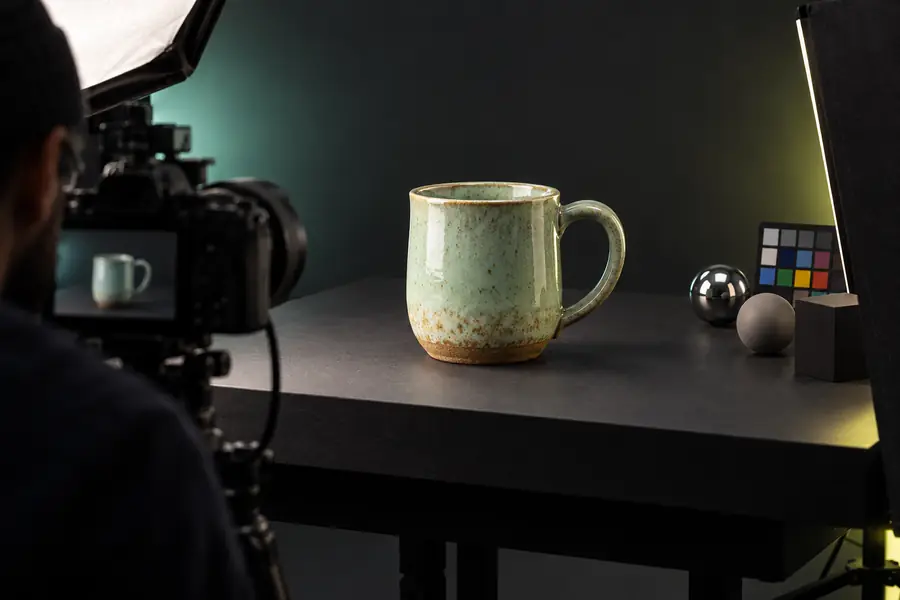
Source image prepared for a photo to 3d workflow
Source image
Generated 3D model ready for inspection
3D result

Check silhouette before surface detail. If the model has a lopsided outline, remove background clutter, use more even lighting, and make the subject larger in the frame. If small features disappear, choose a higher-resolution image and describe those features explicitly. If the back or underside looks uncertain, remember that one image cannot reveal every surface; provide a more informative view when the workflow supports it. If the model includes accidental objects, crop the image or isolate the main subject before submitting it again. If proportions feel wrong, avoid judging from a single angle and rotate the result before deciding whether the geometry needs another pass.

Source image3D result

Refinement ideas

Advanced tips

Once the basic photo to 3d workflow feels familiar, small changes in preparation and review can produce more dependable results for different types of work.

Product designer

You need an early spatial reference for a bottle, package, lamp, or household object before detailed CAD work begins.

Use a neutral background, keep the object centered, and compare the generated silhouette against the real reference before building on it.

photo to 3d online

Game or scene artist

You want a rough prop to block out scale, composition, or camera placement in a digital scene.

Prioritize recognizable proportions and major forms first; surface polish can come later in the destination application.

image to 3d model glb free

3D printing hobbyist

You are testing whether a photographed object can become a printable concept or reference before mesh cleanup.

Inspect wall thickness, flat contact areas, enclosed spaces, and unsupported details instead of assuming the generated mesh is print-ready.

3d print from photo online

Archive or catalog team

You need a spatial preview of an artifact or object when a complete scan is not yet available.

Keep the original photo with the generated asset, record what was visible, and label inferred surfaces so the model is not mistaken for a measured scan.

2d to 3d image converter

Start your workflow

You now have a practical method for preparing the source, describing the intended object, checking common failure points, and deciding whether the result is ready for your next tool. Start with one clear image and improve the input when the geometry needs another pass.

Turn a useful image into a 3D starting point

  • Use a clear, isolated subject
  • Describe the details that matter
  • Inspect the model from more than one angle
Convert my image

Common questions

Tutorial FAQ

A clear image with one main subject, even lighting, visible edges, and limited background clutter is usually the strongest starting point. Center the object and avoid motion blur or severe occlusion when possible.

Yes, a phone photo can be a useful starting image if the subject is sharp and well lit. A phone image may still need cropping, background cleanup, or a second attempt when important surfaces are hidden.

Name the object and identify the features that must remain visible, such as handles, openings, legs, grooves, or a specific silhouette. Also state whether you need a concept model, a scene prop, a reference asset, or preparation for further cleanup.

A single image provides stronger evidence for visible surfaces than for the back, underside, or occluded areas. Improve the source framing, provide additional visual information when available, and inspect the result from several angles before accepting it.

Not necessarily. Before printing, check the mesh for holes, thin walls, disconnected parts, unstable contact areas, and scale issues, then repair it in a suitable preparation tool.

Start creating
Start creating