3D editor
You need to adjust a model in software that requests OBJ files.
Check format expectations before spending time refining a GLB preview.
Image conversion
Start with a clear reference image, then inspect the resulting shape and materials before using it elsewhere. Phototo3d links you to a 3D creation tool; check its current GLB export and access terms there.
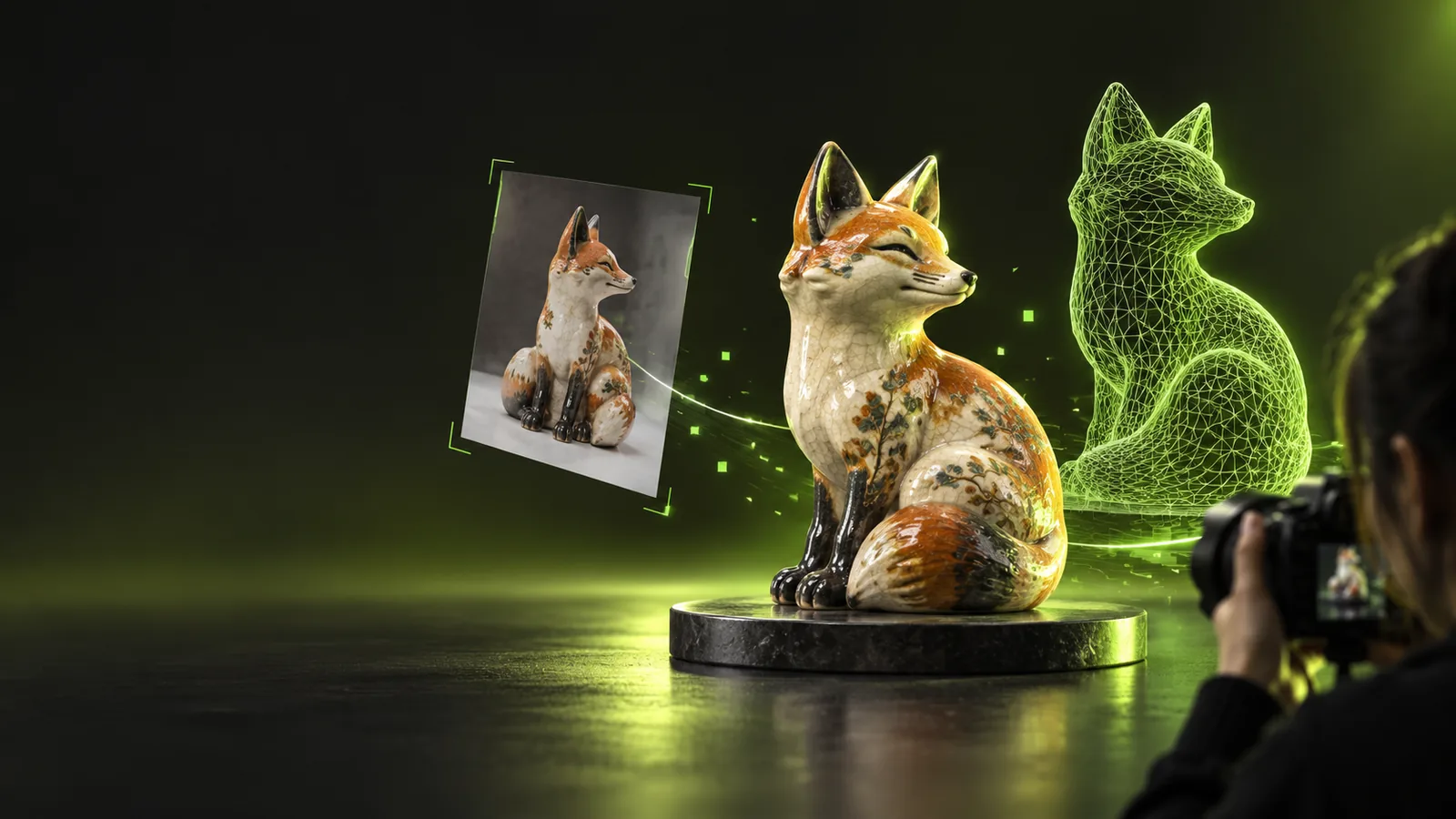
An image to 3D workflow uses a picture as a visual reference for a model. GLB is a single-file 3D format that can package geometry, materials and textures, but the available export depends on the tool.
A picture shows one viewpoint; a GLB must describe a three-dimensional object. These gaps matter more than the filename when deciding whether the result is usable.
A single image does not reveal the back, underside or internal structure of an object.
What to do instead
Supply additional views if the destination tool accepts them, and inspect the model from every side.
Phototo3d cannot guarantee that the linked tool offers GLB export or that a particular access tier includes it.
What to do instead
Confirm the current export options and terms on the linked tool before starting.
A convincing preview does not prove that textures load or that geometry suits your application.
What to do instead
Open any downloaded GLB in the software where you intend to use it.
Treat image to 3D creation and GLB delivery as two separate checks. The handoff opens the linked tool; its current controls determine which inputs and exports you can use.
Choose a sharp image with one clearly visible object and little background clutter. A distinct silhouette gives the model-making step more useful visual evidence.
Open the linked tool, provide the reference through its available controls, and examine the result from multiple angles. Revise the input if major features are missing.
If GLB export is available, save the file and test it in your intended viewer or editor. Check orientation, scale, materials and missing surfaces before use.
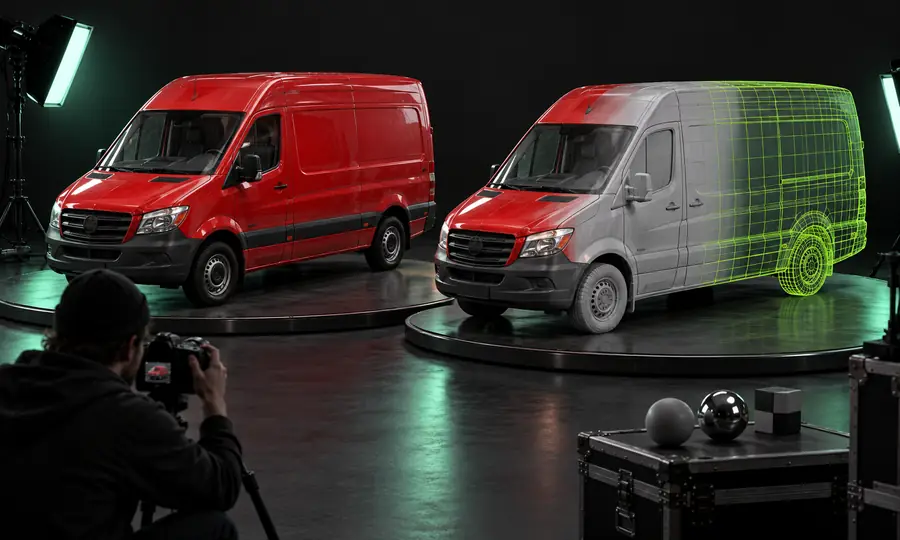
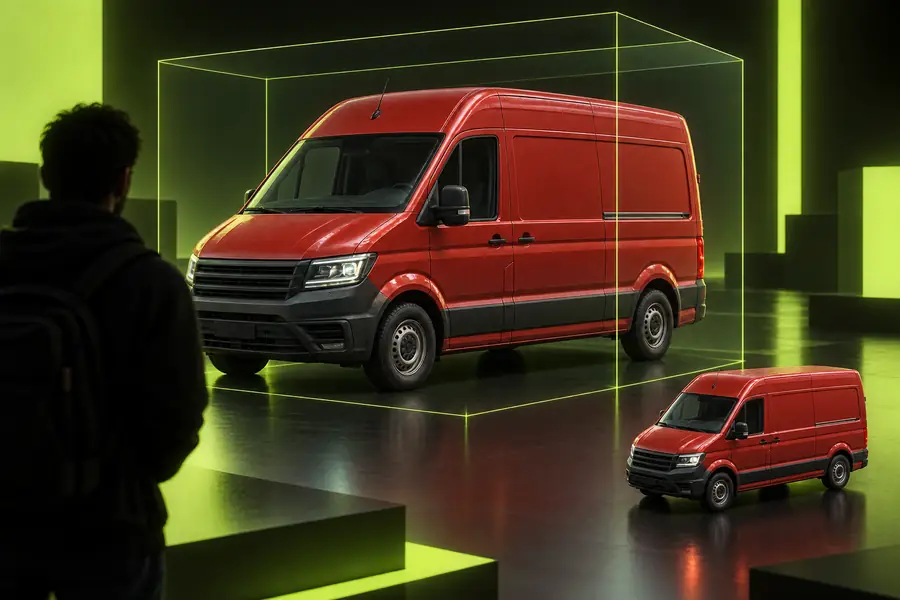
Illustrative images, not a verified conversion pair or proof of a downloadable GLB.
Visual referenceModel previewThe right image to 3D workflow depends on what you need to do after generating the model.
You need to adjust a model in software that requests OBJ files.
Check format expectations before spending time refining a GLB preview.
You are still deciding what a flat reference can become.
Start with conversion basics, then select an output for your project.
Your source is a camera photo with a busy background.
Prepare a clearer subject before evaluating the resulting geometry.
This compares the source image with a GLB asset, not the features promised by any particular generator.
| Source image | GLB model | |
|---|---|---|
| Spatial information | Pixels from a fixed viewpoint | Geometry that can be viewed from multiple angles |
| Hidden surfaces | Not shown in the source | Must be inferred, modeled or left incomplete |
| Appearance | Color recorded in pixels | Materials and textures may be included |
| Typical inspection | Check focus, framing and lighting | Check shape, orientation and material loading |
| Editing | Edit the picture as a flat image | Edit the asset in compatible 3D software |
| File availability | You supply the reference | A downloadable GLB depends on the tool's export options |
Use the linked creation tool to explore your image to 3D idea. Before committing the result to a project, confirm its current GLB export options and inspect any file you obtain.
That depends on the linked tool's current access and export terms. Phototo3d does not guarantee a free GLB download; check those terms on the tool before relying on that workflow.
It can provide a useful visible reference, but it cannot show surfaces outside the camera view. Inspect the back and underside of a generated model rather than assuming they match the real object.
No. A picture remains a flat image, while a GLB can contain geometry and appearance data for a viewable 3D asset. Verify the downloaded file itself rather than judging only a preview.
Open it in your intended viewer or editor and rotate it through several angles. Check that the scale, orientation, surfaces and materials work for your project.