Concept designers
You need a rough object form from a sketch, product photo, or visual reference before committing to detailed modeling.
A generated draft can help you test proportions and communicate the direction of an idea.
Image to model
A free photo to 3d workflow can help you move from one visual reference to a workable 3D starting point without guessing what to do next. Begin with a clear image, review the result, and refine your direction.
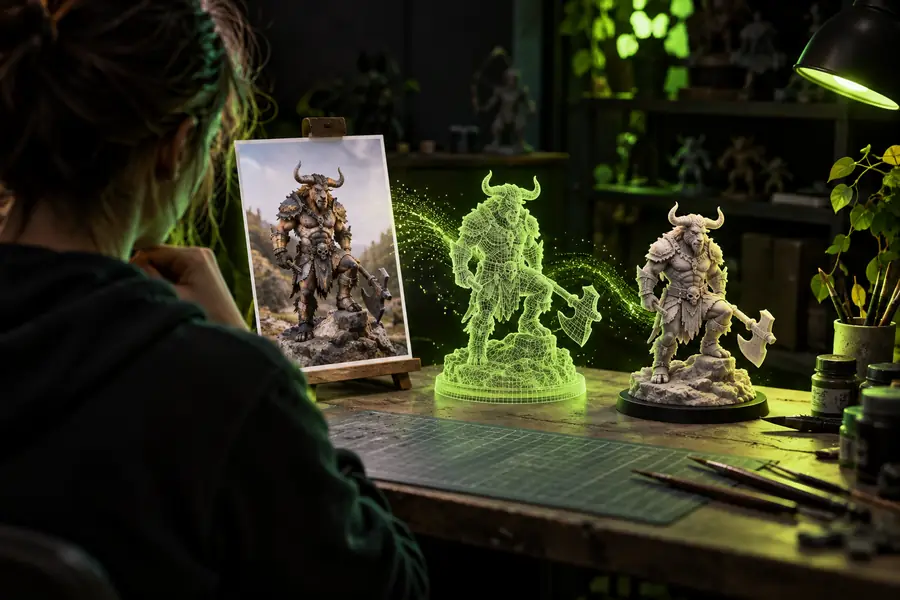
The route is most useful when you treat the first model as a visual draft: identify the object, guide the conversion, then decide whether the result fits your next step.
A conversion tool does more than trace visible pixels. It interprets shape, separates the object from its surroundings, and builds a surface that can be reviewed as a 3D form.
The system estimates hidden depth from visible evidence, so a single front-facing image cannot fully reveal every side, recess, or underside.
What to do instead
Use an image with clear contours and describe important hidden features in the prompt.
Busy backgrounds, overlapping objects, reflections, and soft edges can make it harder to identify which parts belong to the subject.
What to do instead
Choose a well-lit reference with one dominant object and strong contrast around its outline.
The result may preserve the overall appearance without reproducing exact materials, thin parts, internal geometry, or engineering tolerances.
What to do instead
Treat the first model as a draft and inspect it before using it for a final scene, game asset, or physical output.
The process is easier to control when each stage has a clear purpose: prepare the reference, state what matters, and evaluate the model instead of expecting a perfect first pass.
Start with a sharp image showing the main subject clearly. Avoid unnecessary background detail, extreme cropping, and angles that hide the object’s defining form.
Describe the object, its material, its important features, and the view you want preserved. Specific guidance gives the conversion a more useful target.
Review proportions, silhouette, openings, thin components, and surface behavior. Keep the result as a draft unless it meets the requirements of your next tool or workflow.
These reference points describe the scope of this page and the site rather than promising a particular generation speed, accuracy level, or export result.
A before-and-after view helps separate what was visible in the source image from what the conversion had to infer.
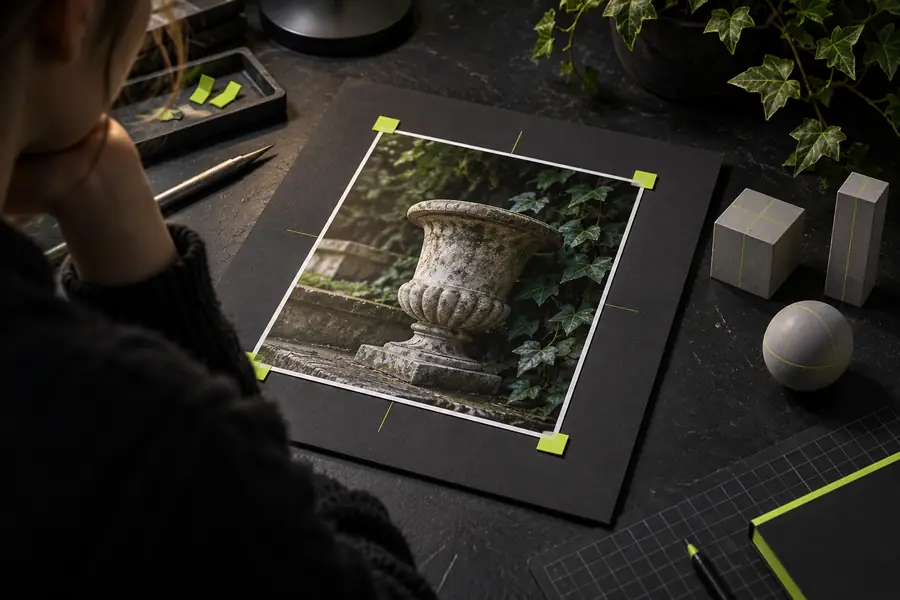
Use the comparison to check silhouette, missing surfaces, and details that may need another pass.
Reference imageModel directionDifferent users may judge the first model by different standards. These examples show where a draft can help and when a more specialized path deserves attention.
You need a rough object form from a sketch, product photo, or visual reference before committing to detailed modeling.
A generated draft can help you test proportions and communicate the direction of an idea.
You want to explore a prop quickly while planning an environment or blocking out a visual sequence.
The model can serve as an early asset reference, provided you check topology and surface details later.
You have a physical object image and need a three-dimensional approximation for early composition or presentation work.
A photo to 3d draft can shorten the distance between a reference and an initial visual mockup.
You are exploring whether a photographed object could become the basis for a printable form.
Use the result as an investigation starting point, then validate watertightness, scale, supports, and structural details separately.
A free photo to 3d conversion is best understood as a bridge between visual reference and model exploration, not as a replacement for every modeling stage.
| Reference image | 3D draft | |
|---|---|---|
| What it shows | Visible color, texture, lighting, and silhouette from one viewpoint | An interpreted form that can be inspected from more than one angle |
| Hidden surfaces | Not visible in the source view | Estimated from the visible evidence and guidance |
| Best early use | Communicating appearance and visual mood | Testing shape, scale, and spatial presence |
| Accuracy expectation | Accurate to the captured viewpoint | Useful as a draft, but dependent on image quality and subject complexity |
| Editing needs | Crop, clean up, or annotate the image | Inspect geometry, surfaces, openings, and thin parts |
| Next decision | Whether the subject is clear enough to interpret | Whether the model is suitable for the intended downstream task |
Use the conversion as an informed first pass: provide a focused image, describe the features that matter, and inspect the model before building on it. That approach keeps expectations realistic while making the photo to 3d process easier to direct.
Answers for visitors comparing a low-friction image-to-model workflow with a more manual 3D process.
It describes a workflow that starts with a photograph or other 2D reference and aims to produce a 3D model without positioning the process as a paid-only tool. The exact result depends on the image, the subject, the guidance provided, and the requirements of the next step.
One photo can provide useful evidence for a model draft, but it does not directly reveal every hidden surface or internal feature. Use a clear reference and inspect the result, especially when the object has thin parts, repeated details, or a complex underside.
Choose a sharp image with one main subject, readable edges, and enough contrast from the background. A short description of the object, material, important features, and desired emphasis can help make the conversion easier to evaluate.
Not automatically. A generated model should be checked for scale, watertightness, wall thickness, disconnected parts, and other print requirements before fabrication; the photo to 3d step is better treated as an early modeling aid.
Compare the model with the reference and identify one issue at a time, such as silhouette, missing geometry, or an unclear material boundary. Then improve the source image or refine the description before deciding whether the result is suitable for your intended use.